Edit shapes and points
Select, move and reshape shapes, set their roles, and change their order.
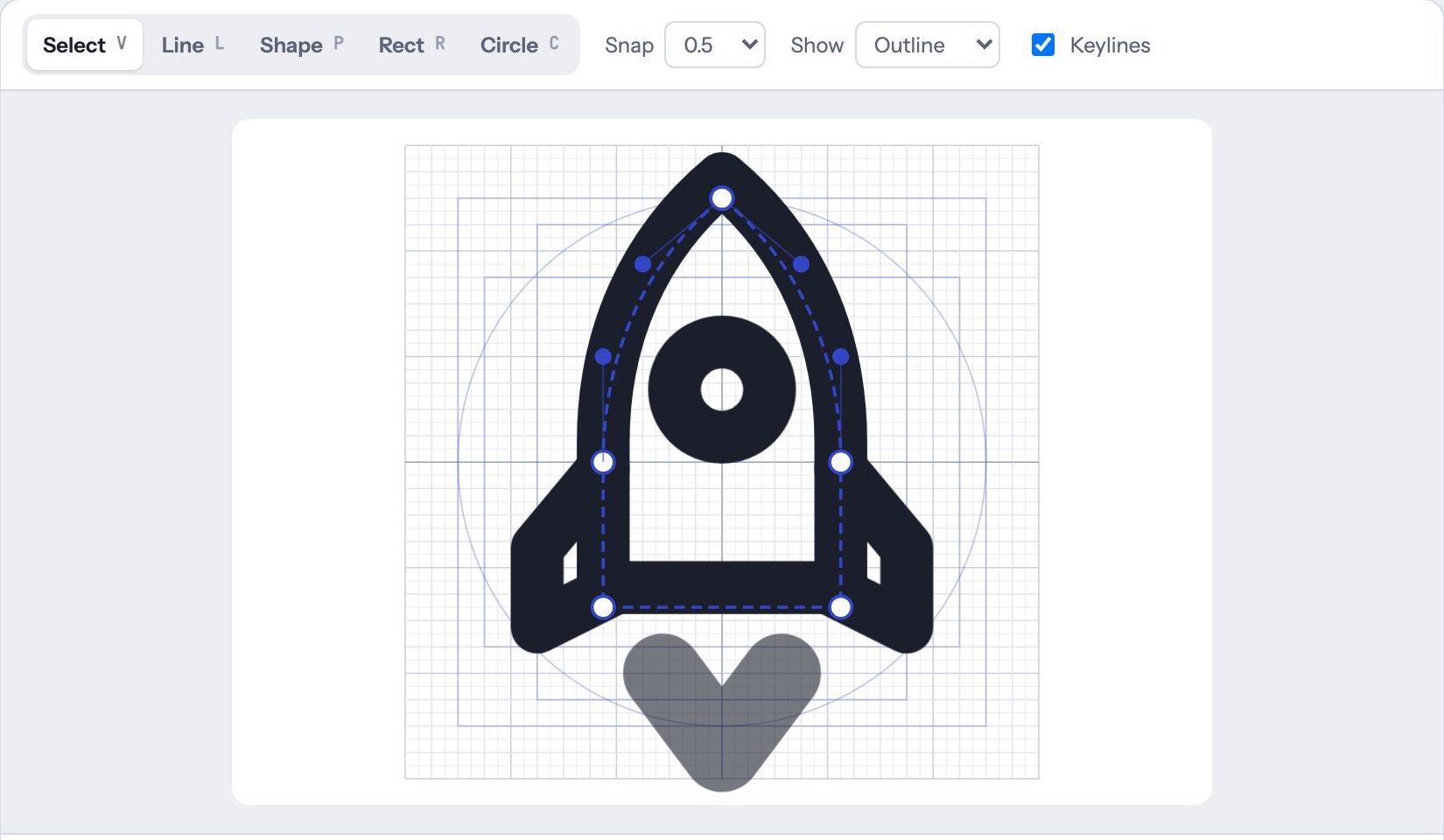
Select and move
With Select (V), click a shape on the board, or click it in Shapes in the inspector. The selected shape gets a dashed outline and handles.
- Drag the shape to move it.
- Drag a round handle to move that point. Filled handles are curve controls.
- Arrow keys nudge by one snap step; add Shift to nudge a whole unit.
- ⌘ D duplicates the shape; Delete removes it.
The inspector
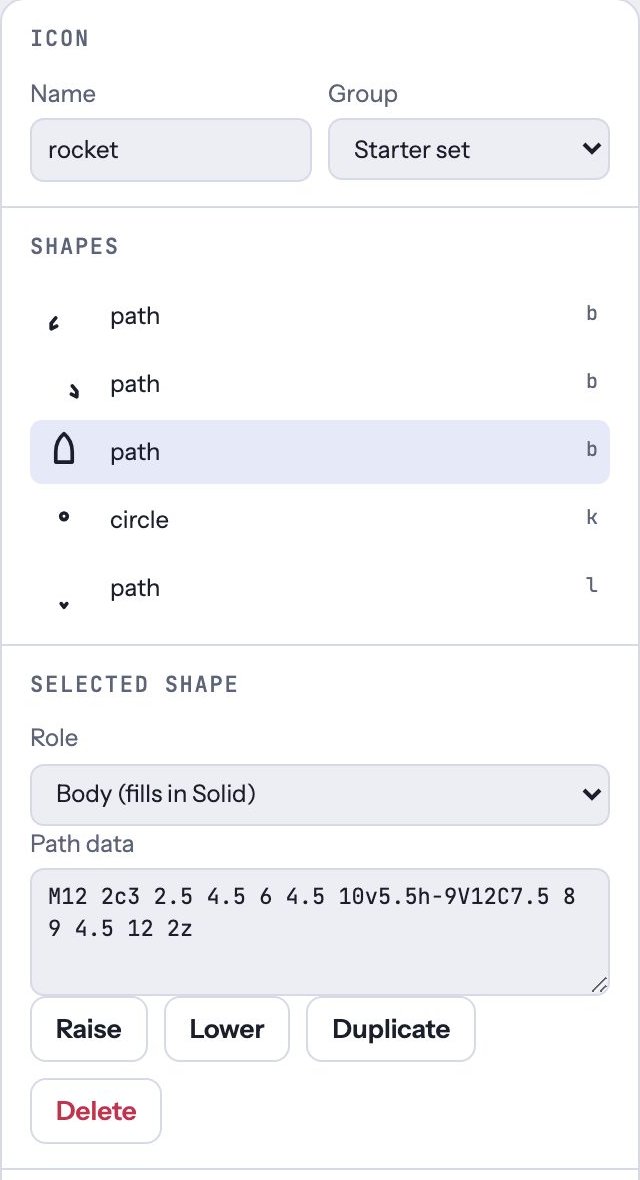
- Name and Group set what the icon is called and where it’s filed in the library.
- Shapes lists every shape, top to bottom. Click one to select it.
- Role decides how the shape draws in each style:
- Body (fills in Solid) for the main shapes.
- Line (always a stroke) for details that should never fill, like steam or rays.
- Cutout line and Cutout dot for details drawn in the background color on top of a filled body, like a lock’s keyhole.
- Dot (always filled) for small solid dots.
- Path data, or the cx, cy, r boxes for a circle, edits the exact numbers.
- Raise and Lower change which shape draws on top.
Undo (⌘ Z) and Redo (⇧ ⌘ Z) are at the top of the Studio.