Edit keyframes
Change what a key does, move a shape's points to morph it, retime keys, and pick a pivot.
Click a diamond on the timeline to select it. Its values appear under the timeline:
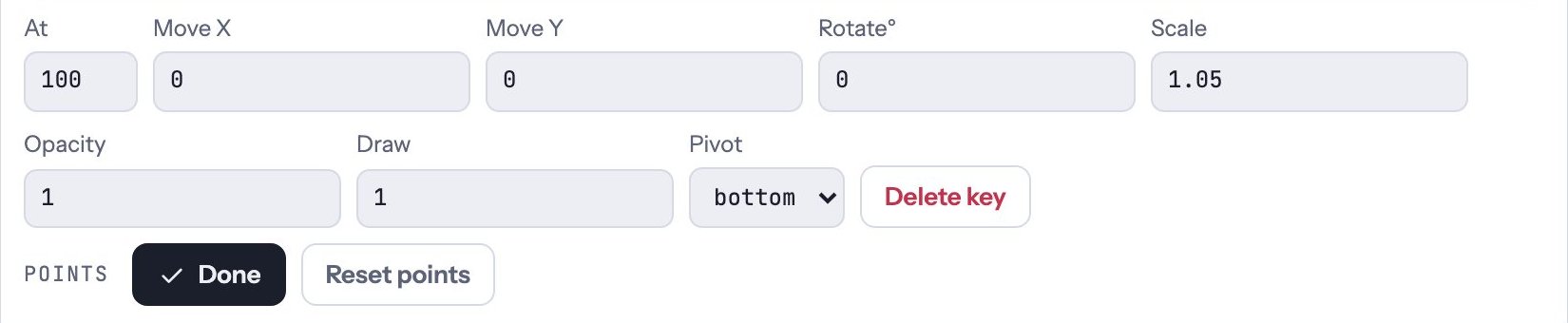
| Box | What it changes |
|---|---|
| At | When the key happens, as a percentage of the motion’s length |
| Move X / Move Y | How far the shape has moved, in grid units |
| Rotate° | How far it has turned, in degrees |
| Scale | Its size; 1 is normal |
| Opacity | 1 is solid, 0 is invisible |
| Draw | How much of the stroke is drawn, from 0 to 1. Key 0 then 1 to draw a line on. |
| Pivot | The point the shape turns and scales around: center, top, bottom, left or right |
Between two keys, values change smoothly using the motion’s Easing.
Move points (morph)
Keys can also reshape a shape: move its points, and the shape morphs smoothly from key to key. A flame flickers, a mouth opens, a blob wobbles.
- Select a key on the shape’s row.
- Under Points, click Edit points. The board jumps to that key and the hint bar says you’re moving points.
- Drag points on the board, or nudge the selected shape with the arrow keys. Only this key changes; your drawing stays as it was.
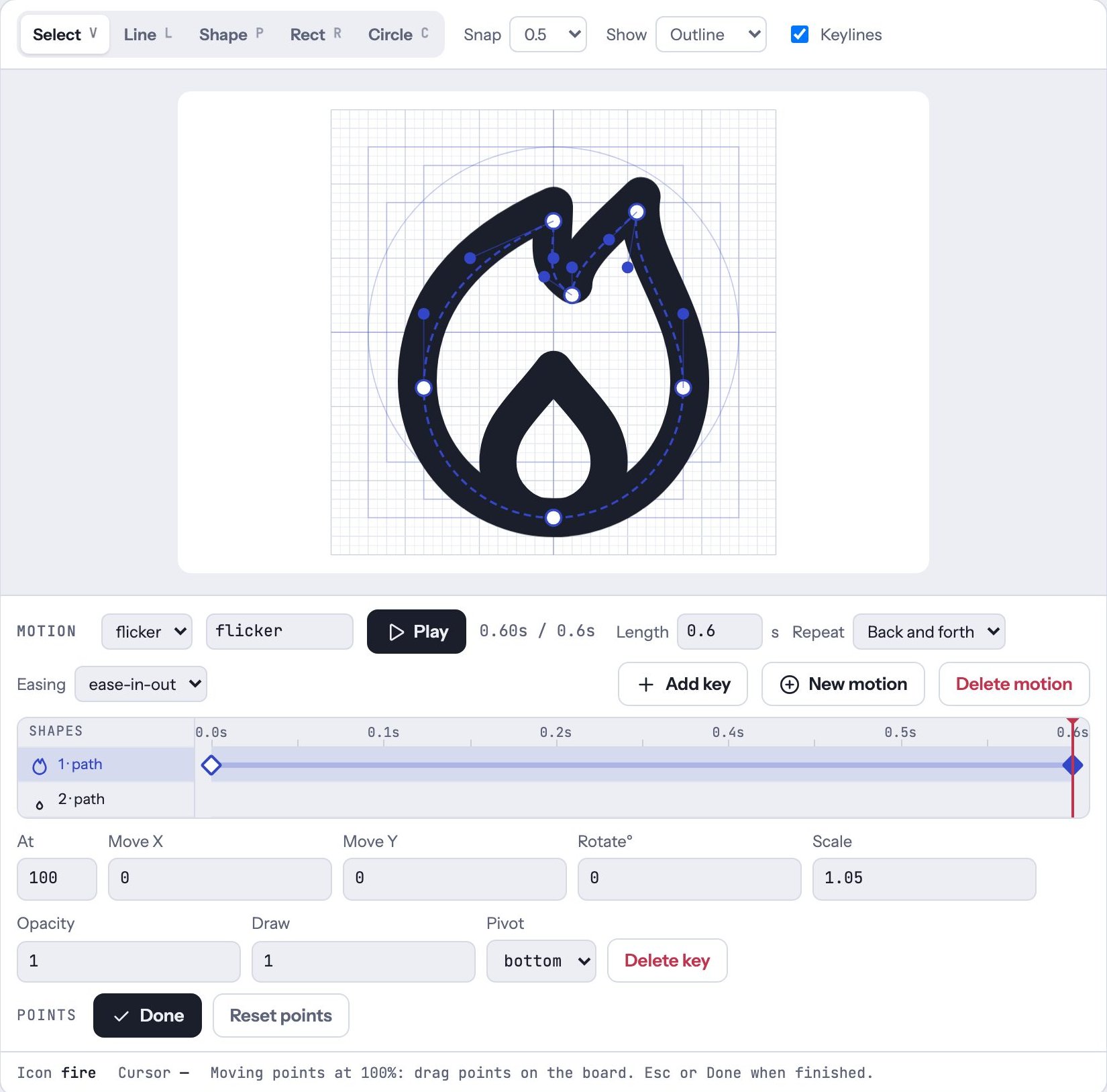
Keys you haven’t edited use the drawing’s own points, so a shape can morph out and back with just one edited key.
- Reset points puts a key back to the drawing’s points.
- Circles and rectangles turn into paths the first time you edit their points, so every point can move.
- A morph needs the same points in every key. If you change the shape’s Path data so it has more or fewer points, the key shows These points no longer match the shape; click Reset points to fix it.
Point morphs play in every browser and in plain
<img> tags. Unlike the other key values, they keep playing in exported files even when the viewer’s system asks for reduced motion, so keep them gentle. In <gw-icon> they switch off for those viewers.Retime a key
Drag a diamond left or right along its row. The playhead follows so you can see that moment.
Delete a key
Select it and click Delete key. When a shape’s last key goes, its row is empty again.
A bell rings from its top: set its body’s Pivot to top, then key Rotate° back and forth.