Animate with the timeline
Give an icon a motion, key shapes along the timeline, and play it back.
Every icon can have one or more named motions. A motion moves, turns, scales, fades, draws on or reshapes any of the icon’s shapes over time. Reshaping, moving single points, is covered in Edit keyframes.
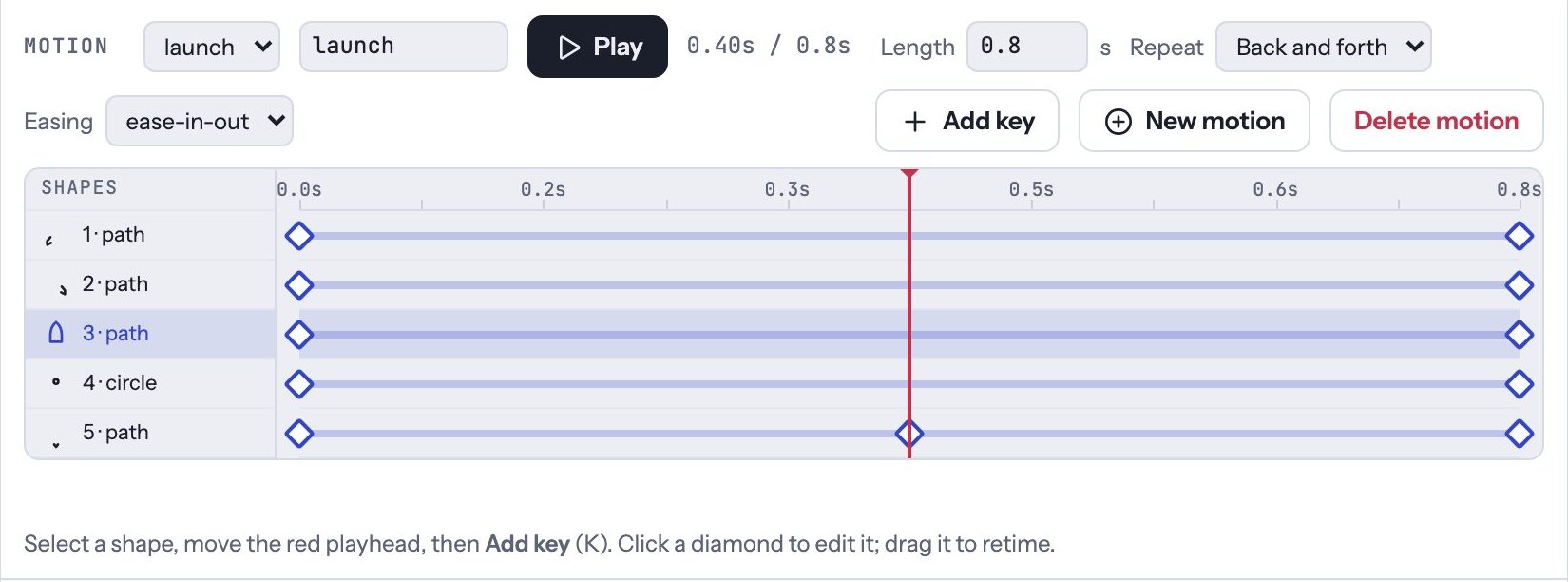
Start a motion
- Open an icon and click New motion under the board.
- Select a shape on the board, or click its row in the timeline.
- Drag the red playhead to a moment, or click anywhere along a row.
- Click Add key or press K. A diamond appears on the shape’s row.
- Change the key’s values in the boxes under the timeline. See Edit keyframes.
- Move the playhead, add another key, and change its values.
Press Play or Space to watch it. The board, Every variant and the size previews all play the motion.
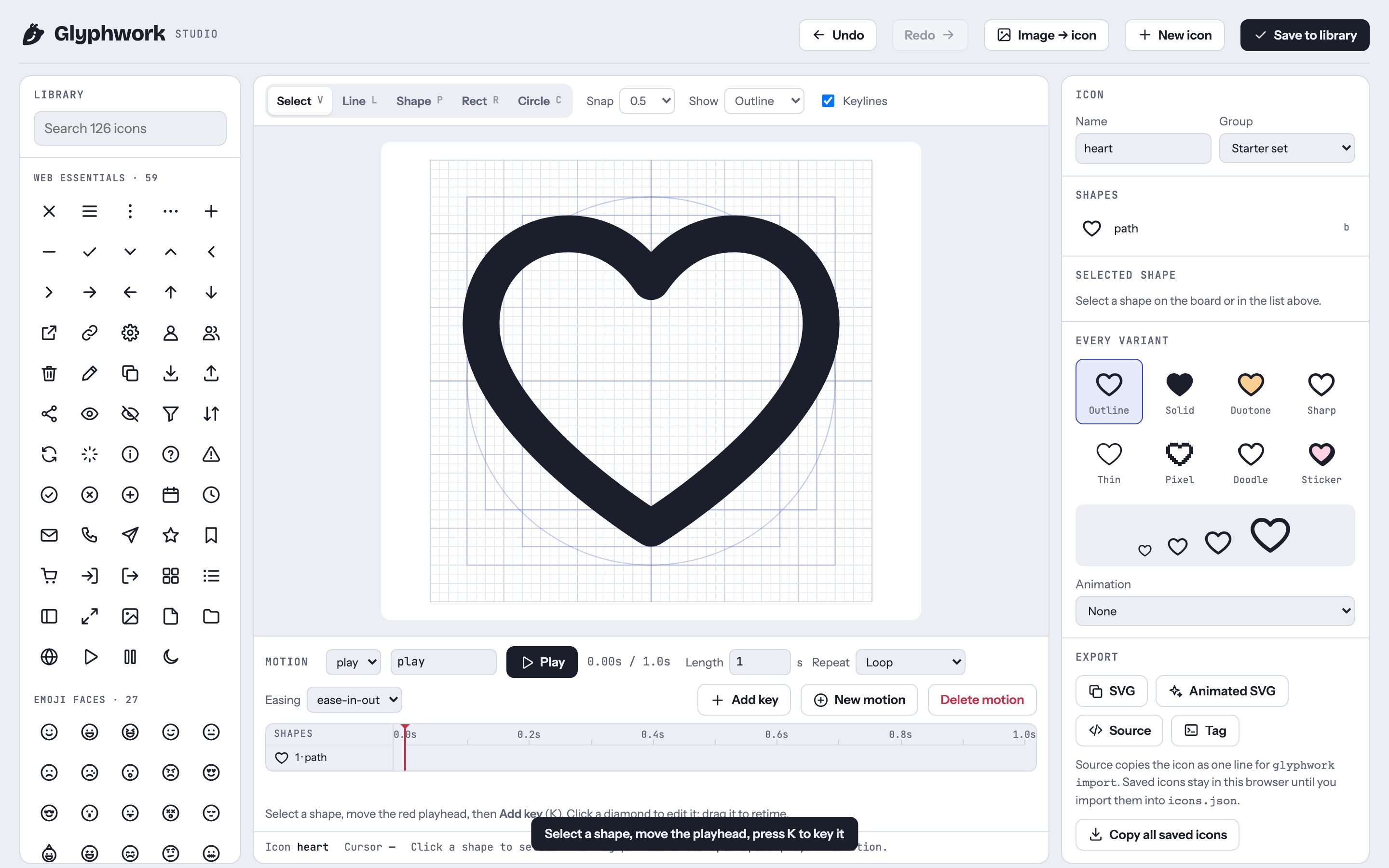
Motion settings
- The menu next to Motion switches between the icon’s motions; the box beside it renames the current one.
- Length: how long one run takes, in seconds.
- Repeat: Loop, Back and forth, or Once.
- Easing: how motion speeds up and slows down between keys, from linear to overshoot and steps.
- Delete motion removes the current motion. Undo brings it back.
Quick animations
For a whole-icon effect with no keys, use Animation under Every variant: party, spin, bounce, wiggle, pulse or beat.